
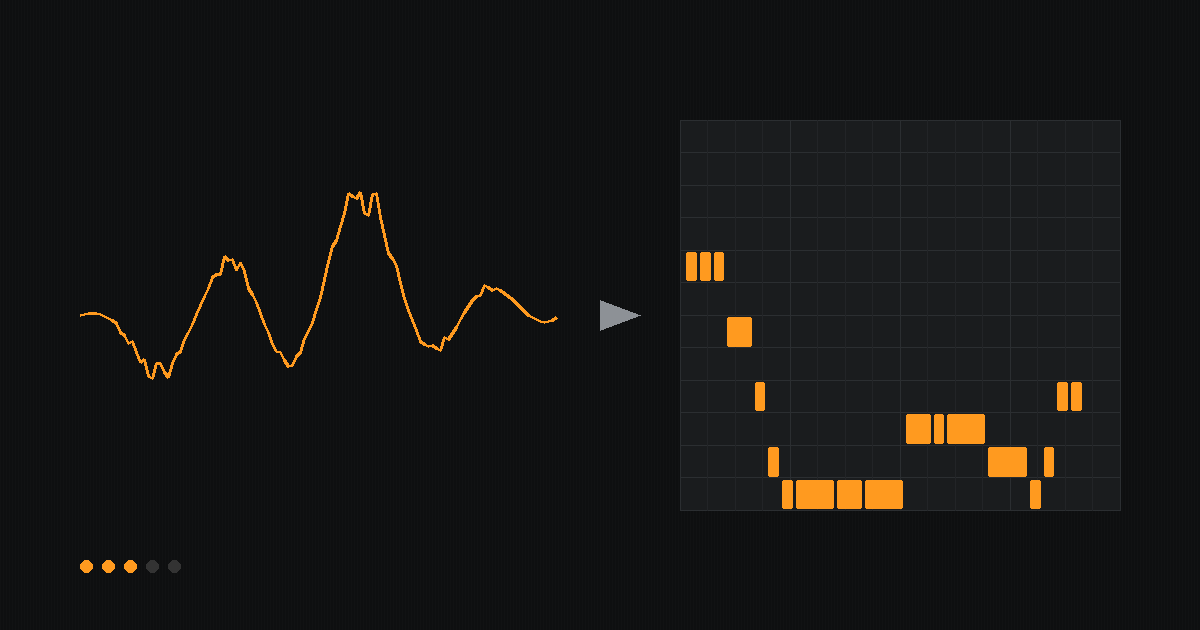
You are walking, showering or falling asleep, and a melody shows up in your head. Five minutes later it is gone. If you do not play an instrument, getting that idea into a DAW can feel impossible. The good news: you do not need to play anything. You need a way to turn your voice into MIDI, the note data every DAW understands.
This guide explains what “hum to MIDI” actually means, the main ways to do it, what goes wrong, and a simple free workflow you can use today.
What “hum to MIDI” really means
Audio is a recording of sound waves. MIDI is not sound at all: it is a list of instructions such as “play this note, at this time, for this long, this hard”. When you convert a hummed melody to MIDI, software listens to your voice, estimates the pitch you are humming at each moment, and decides where each note starts and ends.
Once your melody is MIDI, you can:
- Play it with any instrument (piano, synth, strings, a lead sound).
- Fix wrong notes by dragging them in a piano roll.
- Change the tempo without changing the pitch.
- Build chords, bass and drums around it.
The three common approaches
1. Record audio, then convert it in your DAW
Several DAWs include an audio-to-MIDI feature. You record your humming as an audio track, then run a conversion. This works if you already own and know that DAW. The downside is that you end up with a single melody line and still have to arrange everything else yourself.
2. Use a dedicated pitch-to-MIDI tool
Standalone converters and plugins focus on accurate pitch detection. They are useful when you need a precise transcription of a vocal line. They usually give you exactly what you sang, nothing more.
3. Use a melody-to-song tool
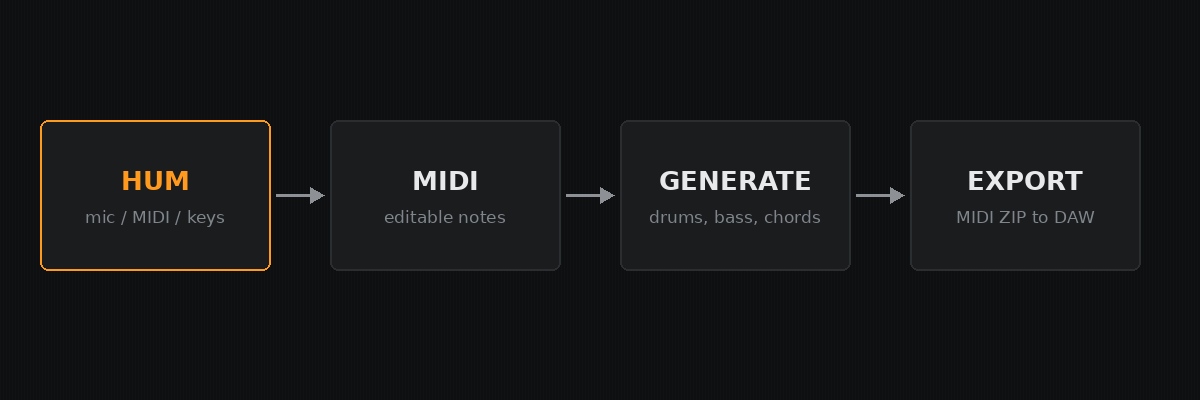
A newer approach is to hum the melody and let the tool build an arrangement around it. This is what KIOSK HUM is designed for: you hum, sing or play a melody, and it gives you back a multi-track, editable MIDI song (drums, bass, chords and lead) that you can export as a ZIP of MIDI files and open in any DAW.
Step-by-step: hum a melody into MIDI with KIOSK HUM
- Open the app. Go to kioskaudio.com/hum in your browser.
- Pick your input. Choose Mic (hum / sing). If you have a MIDI keyboard you can use MIDI controller, or use the on-screen keyboard.
- Set the basics. Choose a BPM, a length (4, 8, 16 or 32 bars), and major or minor. Turn on the metronome and count-in so your timing lines up with the grid.
- Record. Hum the melody clearly. Loop-record if you want several takes.
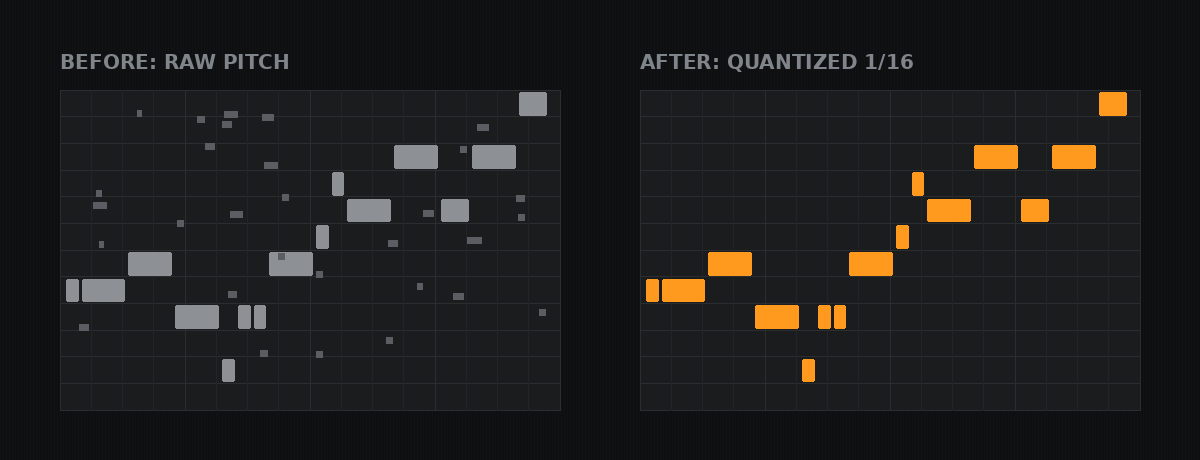
- Clean up. Click a lane to add a note, click a note to delete it. Quantize (1/8, 1/16 or 1/16 triplets) to tighten the timing.
- Generate. Press Generate to build drums, bass, chords and lead around your melody. You can also describe your idea in a text prompt, in English or Spanish.
- Export. Click MIDI ZIP and drag the files into Ableton, FL Studio, Logic, Reaper or any DAW.
Tips for cleaner pitch detection
Every voice-to-MIDI method, in any software, struggles with the same things. These habits help everywhere:
- Use a neutral syllable. “Da”, “doo” or “la” gives clearer note starts than a closed-mouth “mmm”.
- Separate the notes. Slides and vibrato between notes create extra “ghost” notes. Sing each note a little more deliberately than you would naturally.
- Record in a quiet room. Fans, TV and room echo confuse pitch detection.
- Keep a steady distance from the mic. Getting much louder or quieter mid-phrase can split or drop notes.
- Stay in a comfortable range. Very low humming is harder to read than a relaxed mid-range voice. You can always transpose the MIDI later.
- Use the metronome. Recording against a click makes quantizing far more accurate.
Common problems and fixes
| Problem | Likely cause | Fix |
|---|---|---|
| Too many tiny notes | Pitch wobble or slides | Sing more steadily, then delete extras or quantize |
| Notes one octave off | Detector picked a harmonic | Select the notes and transpose by 12 semitones |
| Timing feels late | Singing behind the click | Use count-in, then quantize to 1/16 |
| Wrong note here and there | Normal detection error | Click to delete and redraw it in the lane |
What you own
A melody you hum is your idea. When it becomes MIDI, you are holding plain note data, not someone else’s audio. That is why MIDI is a practical format for songwriters: you can take it anywhere, change every note and put your own sounds on it. (If you plan to release music commercially, always read the terms of any tool you use.)
Next steps
Once your melody is in MIDI, the real work is arranging: chords that support the tune, a bass line, and drums that fit the genre. We cover that in How to Make a Song from a Melody in Your Head.
FAQ
Do I need a good microphone to hum into MIDI?
No. A laptop or phone mic can work for capturing ideas. A quieter room and steady distance from the mic usually matter more than the mic itself.
Can I convert humming to MIDI without a DAW?
Yes. Browser-based tools such as KIOSK HUM let you record, edit and export MIDI without installing a DAW. You only need a DAW later if you want to produce and mix the song.
Why does my MIDI have extra notes?
Pitch detection reads small wobbles, slides and vibrato as separate notes. Sing each note more deliberately, quantize the result, and delete the leftovers by hand.
Is hum to MIDI accurate enough for real songs?
It is accurate enough to capture the idea. Expect to fix a few notes, which takes far less time than writing the melody from scratch.
Have a melody stuck in your head right now? Try KIOSK HUM free: hum it, generate a full MIDI arrangement, and export it to your DAW.
1 thought on “How to Turn a Hummed Melody into MIDI (Free Method)”